 AOMEI Partition Assistant


Guide on How to Partition a Hard Drive
How to partition a hard drive like resize partition, create, delete and format partitions in Windows 8/7/XP/Vista/2000 and Server 2012/2003/2008 easily? In this article, you will find Windows partition manager, it is the best solution for partitioning hard drive.

By Bryce / Updated on May 12, 2023


At present, the disk with 2048GB can be seen everywhere with the expansion of computer disk space, so to partition a hard drive with a large amount of space become more and more urgent. Next, go and find some detailed answers about how to partition a hard disk.
Quick Links:
1. How to partition a hard drive?
2. Resize partition for one hard drive
3. Create partition on hard drive
4. Delete partition on hard drive
5. Format partition on hard drive
6. Why partition a hard drive
7. Partition a hard drive summary
What is Disk Partition?
Partition, namely, an independent part of hard drive, in general, it has two partitions in one disk, one is used for installing operating system, another is used for storing data or files. In such circumstance, if one partition has something wrong, the other will not be affected. If you need, you also could create more partitions to store your data and files with classification. Commonly, you must partition a hard disk to store data when you purchased a new hard drive.
How to Partition a Hard Drive?
The most of common operation to partition a hard drive includes create, delete, format and adjust partition size. Often, the users who have a knowledge of computer, they would partition a hard drive in computer built-in function - disk management. Yes, it is very easy and convenient for people to do it. But to most of users who don’t use disk management and their computer have been used for so long. This way may be not a good way to go. If something went wrong, all data and files in partition would be lost.
To attain these objectives, here will be introduced a featured software - AOMEI Partition Assistant (PA) Pro, the outstanding Windows partition manager. And here it comes to the functions illustrated respectively. First of all, you need to download the software:Free Download AOMEI PA Pro (size: 18.4MB)
One: Resize Partition for Hard Drive
Resize Partition also namely repartition or adjust partition size. We postulate that it has two partitions on a disk, C: with 20GB, and D: with 60GB. With AOMEI Partition Assistant (PA) Pro, Windows partition manager can extend C: drive to 30GB, shrink D: to 50GB without losing data, and resize BitLocker Partition. Sometimes, we have no choice but using the third party software as the fact that the systems before Windows Vista have no built-in disk management utility to resize operation, such as XP, 2000, 2003, in addition, though Vista, Windows 7, Windows 8 and Server 2008 have some update on these aspects, it is limited and imperfect.
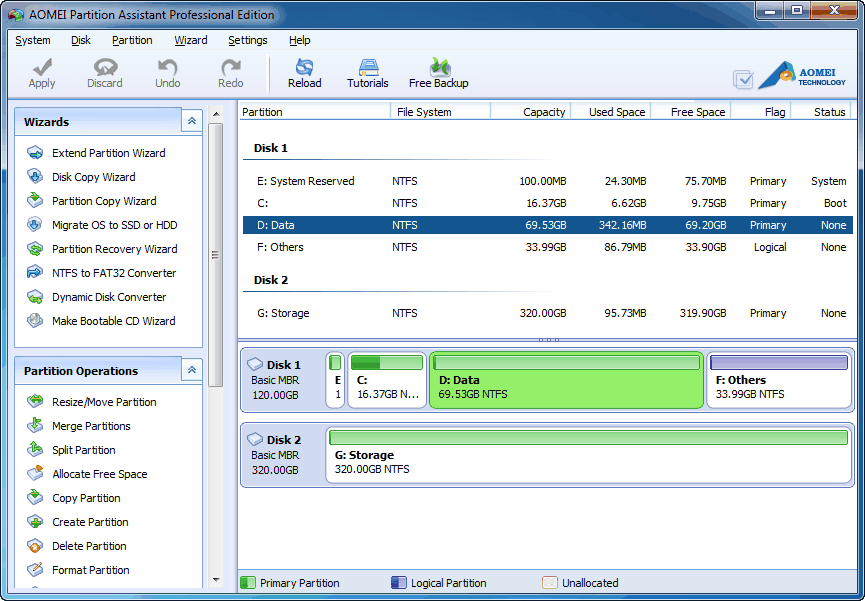
If you don't know how this Windows partition manager to finish the works, read the following guide to extend C: from 16.37GB to 46.62GB, and reduce D: from 69.53GB to 39.28GB. To begin with, show you the current disk condition below:
Step 1: Right click on D: partition and select "Resize/Move Partition" menu, shrink it to 39.28GB as the arrow shows in the pop-up interface, meantime, move D: to the right to make the unallocated space stay behind the C:.
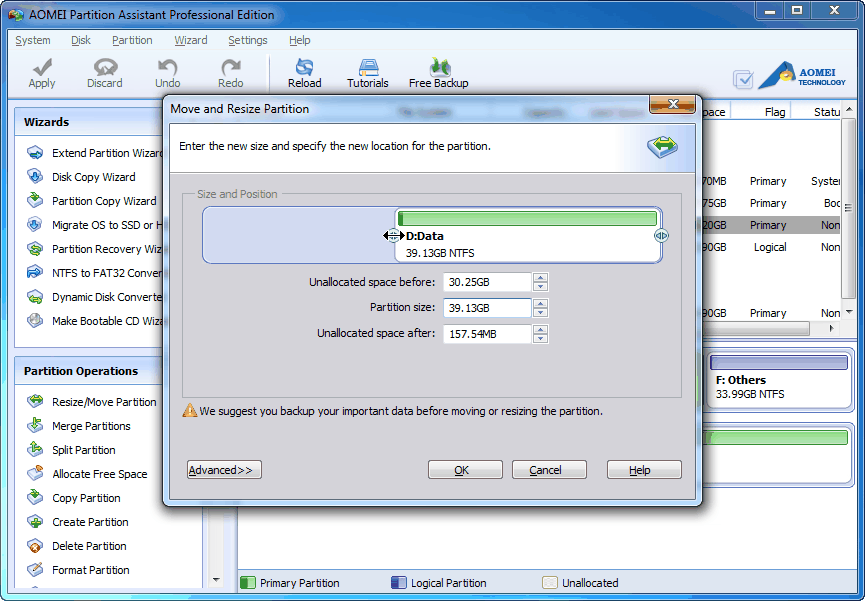
Then, click "OK" on the below view, you will get the following operation condition:
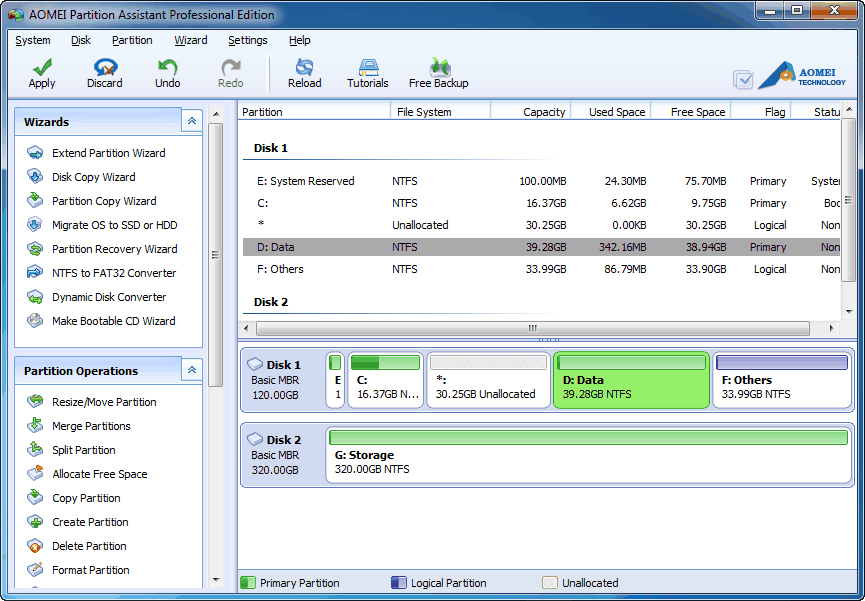
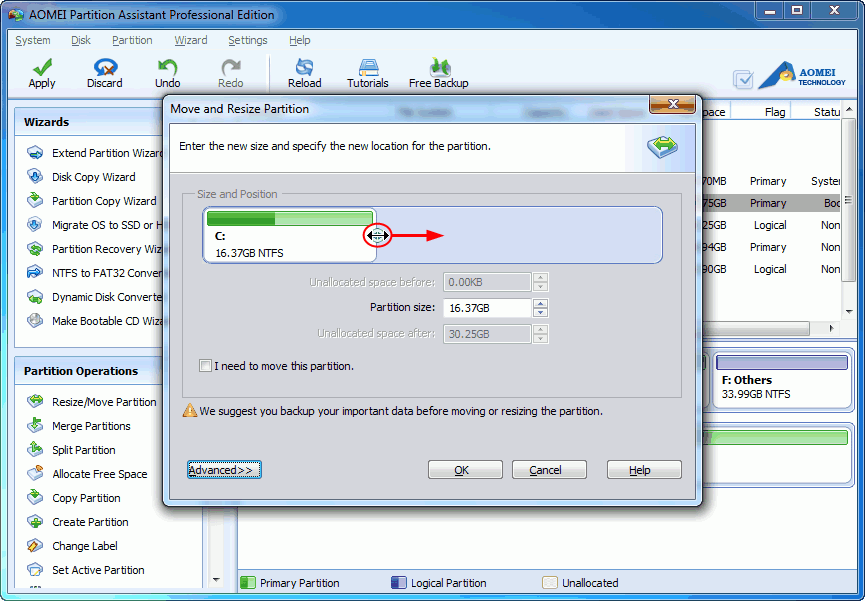
Step 2: Right click on C: partition and select "Resize Partition" menu. In the pop-up window, drag rightwards double-headed arrow to expand C: partition to add unallocated space (30.25GB).
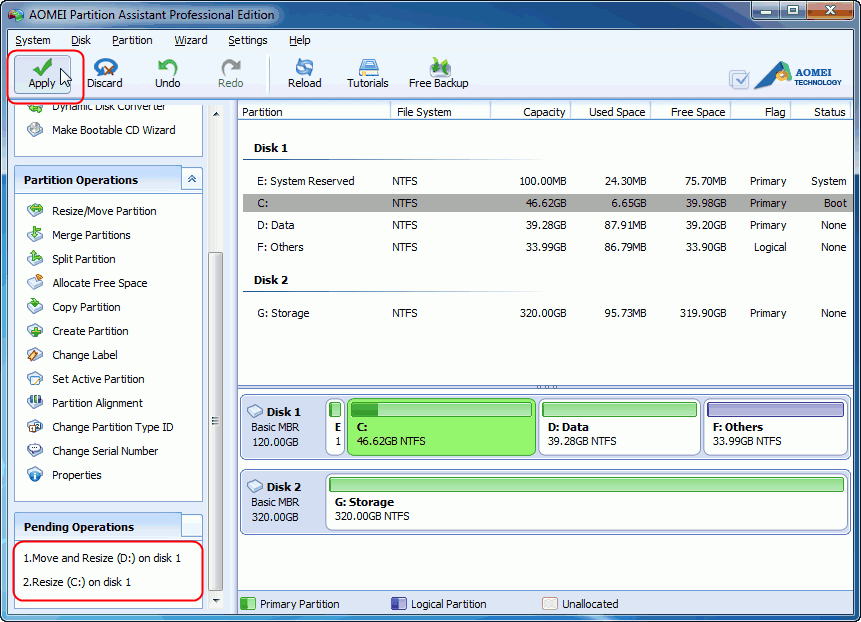
Step 3: Finished resizing, get the following layout, click "Apply" on toolbar to operate all procedures.
Two: Create Partition on a Hard Drive
Creating operation is so easy; you have two choices, the first one, use built-in disk management, the second, by AOMEI Partition Assistant (PA) Pro. If your disk space was all allocated, AOMEI Partition Assistant Pro Edition is the only solution to solve your difficulties.
1. Create Partition in Windows 7
Note that the operations on windows of Microsoft nearly the same as the operation on Windows 7.
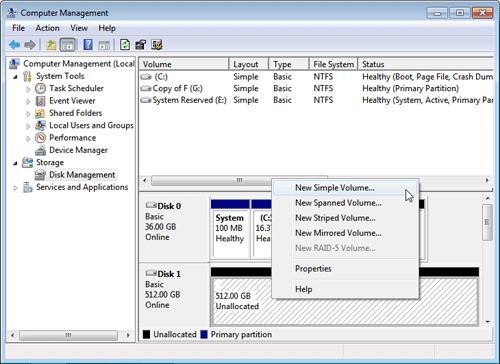
Firstly: click right "My computer" on window, select "Manage" to open another window, find "storage" on the left, select "Disk management" on its Subdirectory.
Secondly, select "New Simple Volume" on the unallocated space you wish to create partition; here runs a New Partition Wizard to guide you achieve the work step by step. Refer to the following view:
2. Create Partition with AOMEI Partition Assistant (PA) Pro
The following articles will help you create partition quickly with AOMEI Partition Assistant (PA) Pro.
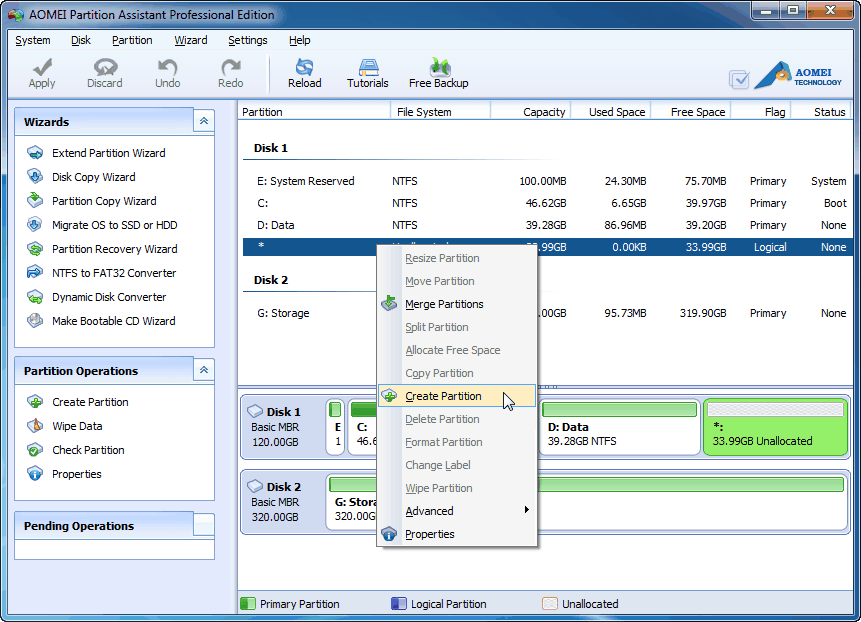
First of all, start up it; right click on the unallocated space, select "Create Partition" on the pop-up menu to get the new window:
In the new window, please specify some parameters or keep default configuration as follows:
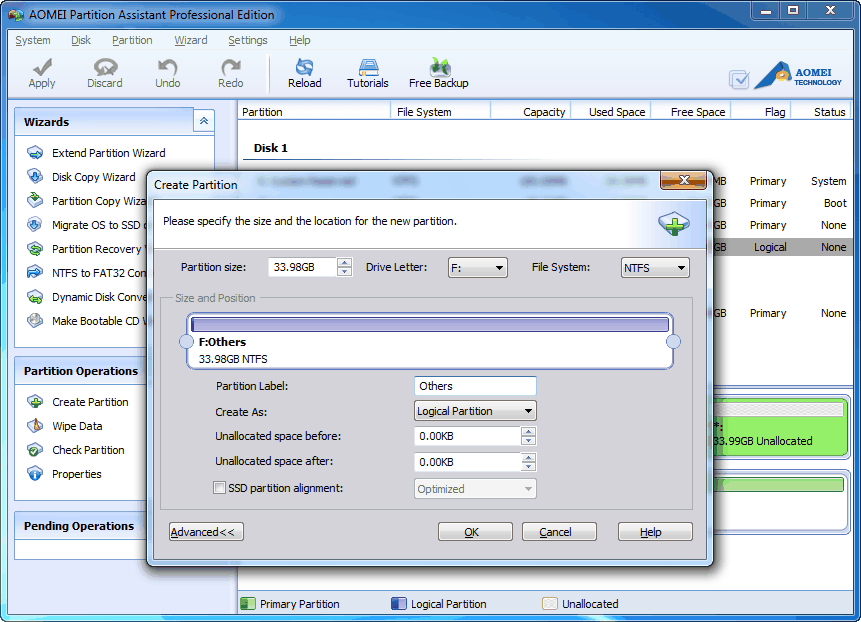
After finished, click "OK" and come back to the main window of AOMEI Partition Assistant. Here you must click "Apply" to make your operation run. Later, you could see the new drive in "My computer".
Three: Delete Partition on a Hard Drive
To some unwanted partition, delete it to save your space for other use. Disk management just supports you to delete it without wiping data, if you need to wipe data permanently and anti-data recovery, don't hesitate and just try AOMEI Partition Assistant.
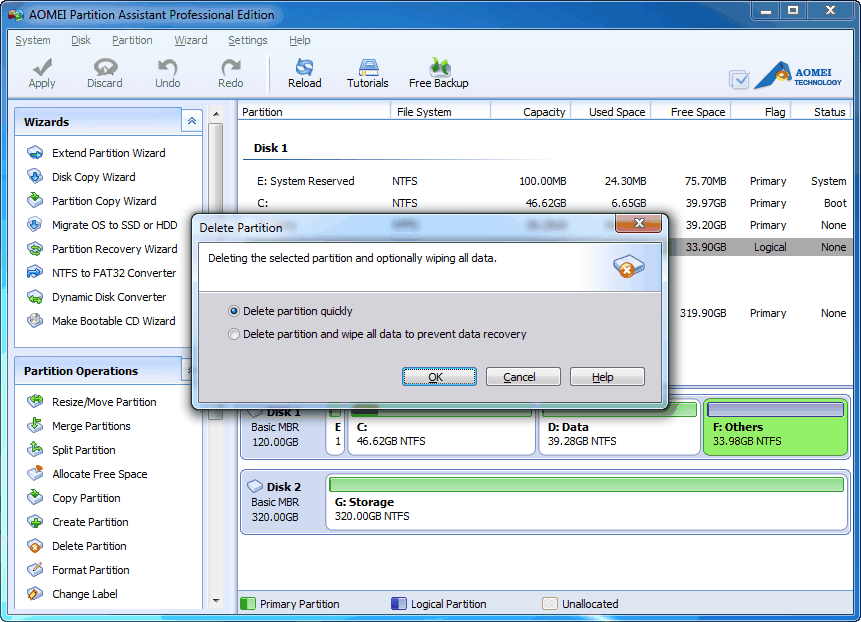
Right click the unwanted partition and select "Delete Partition" to get the new window:
Note:
1. The new window gives you two choices, please select "Delete partition" or "Delete partition and wipe all data" according to your needs.
2. Due to the normal running of system, system and/or boot partition can't be deleted, unless use the "Clear Disk" of AOMEI Partition Assistant.
Four: Format Partition Operation
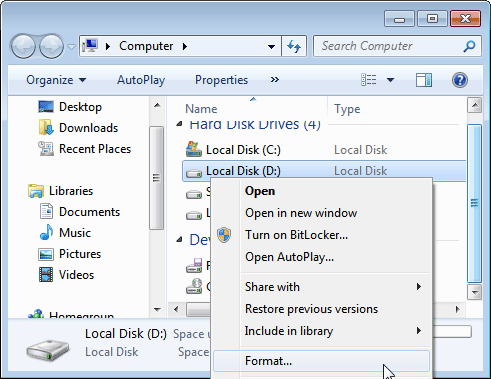
When we need to change file system (such as reach the conversion between NTFS and FAT32) or wipe data fast, format partition is the method. Take a careful consideration before starting your formatting because all data on the partition could be cleared. Open your computer and select a drive, right click "Format". In the following view, mainly take D: drive for instance. Of course, it is a piece of cake for AOMEI Partition Assistant to format partition.
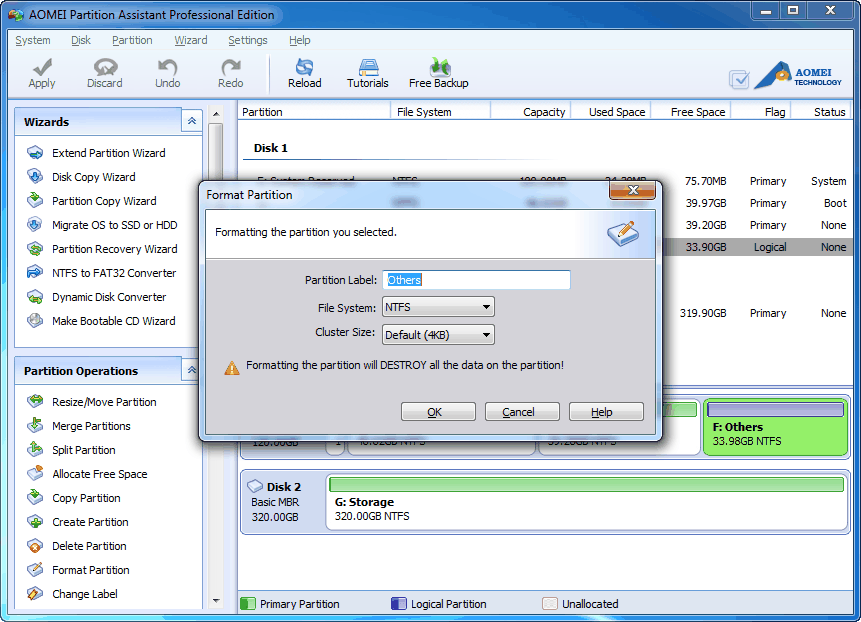
Launch AOMEI Partition Assistant, in main window, right click target partition and choose "Format Partition" in the drop-down menu to get the new window:
Note:
1. Partition Label: Type a name if you like.
2. NTFS or FAT32: Choose NTFS or FAT32.
3. Cluster size: Change cluster size is not recommended here.
Why Partition a Hard Drive?
This part will give you some reasons:
-
Make partitions independent. Other partitions will not be broken when one partition destroyed. At the same time, make your data and file group easily.
-
Encrypt to protect data safety. Put all your cryptographic data to one partition, you just need to encrypt this partition rather than all partitions,to do so could not decrease the efficiency to visit other partitions. (Note: you can't encrypt system partition for the normal operation of your OS).
-
Store similar program or games program to one partition, and label them a name to distinguish from others. For an office worker, for storing our files with classification, this is even more important to create more partitions. They will make us work more fluently and easily.
-
When you wish to dual boot or multiple boot, such as bual boot Windows XP and Windows 7, how could achieve it? Well, it is essential to create partitions.
Summary on Partition a Hard Drive
In view of the foregoing, partition a hard drive is necessary for computer users, if you are special with computer operation, create, delete and format with Windows built-in Disk Management Snap-in. If it can't fulfill your request, let AOMEI Partition Assistant (PA) Pro - a kind of integrated Windows partition manager software to help you solve all the troubles.
 Free Download AOMEI Partition Assistant (PA) Pro to Try (size: 18.4MB)
 Buy AOMEI Partition Assistant (PA) Pro Now (only US$ 36.00)
Related topics: