 AOMEI Partition Assistant


How to Increase Your VMware Virtual Disk Size Easily and Safely?
Step by step instructions to increase/change the size of virtual disk and partition in VMware. With VMware disk manager and AOMEI Partition Assistant, it is very easy and safe to optimize VMware disk space.

By Bryce / Updated on May 12, 2023


About VMware Server
VMware Server refers to a virtualization product which enables companies to partition a single physical Server into multiple virtual machines. VMware Server is available to Windows, Linux, Solaris, and Netware. VMware Server can work with all or any of these Oss. There are many benefits when you take full use of Server virtualization products. These contain:
-
You can decline the cost of hardware maintenance due to a lower number of physical Servers.
-
You can dispose several operating systems on a single hardware platform .
-
You can improve the efficiency of your data center.
-
Each of your applications with its own virtual Server, you can prevent one application from disturbing another application when updates or changes are mage.
-
Virtual machine is independent from hardware; you can restore backup data on any hardware which is able to run vSphere.
Question: I have Windows 2003 in VMware Server. The disk 0 is 20GB and all the disk space is allocated to C drive. The disk 1 is 40GB and only has a partition D which is dynamic volume. Now C drive is running out of space, how can I extend C drive?
In this situation, when you start your computer, you are always getting a warning of low disk space. And it totally affects the efficiency of your work. Who want to stand this all the time? Is there a way to solve the problem?
Answer: To solve the problem, first we need to increase the size of virtual disk, and then extend C drive with AOMEI Partition Assistant Server Edition.
It is not easy for Windows users to increase VMware disk size because it is related to VMware virtual machine and the data security. So this article will introduce a step by step tutorial in the following paragraph.
How to increase VMware disk size?
Important Notes:
-
The instruction applies to VMware Server, Workstation and Player 3.x. If you are using VMware Player 2.x, upgrade to VMware Player 3.x.
-
Confirm all the snapshots have been deleted.
-
Ensure the virtual machine is powered off.
-
Find out where your "vmware-vdiskmanager.exe" is. It would typically locate in the VMware installation directory, e.g. C:/Program Files/VMware/VMware Server/vmware-vdiskmanager.exe.
-
Locate the full path to your Windows virtual machine disk (vmdk). For example, D:/Virtual Machines/Server2003Ent-x64/Windows Server 2003 Enterprise x64 Edition.vmdk
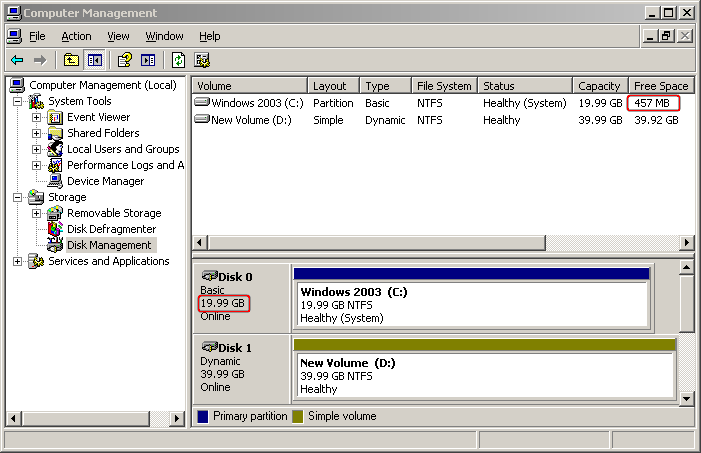
Step 1: Open "Start" menu. Click "Run" and type "cmd" in the text box and then hit the "Enter" key.
Step 2: In the pop-up "command prompt". Type or paste the following command:
"C:/Program Files/VMware/vmware-vdiskmanager.exe" –x 30GB "xx.vmdk"
Note: Replace 30Gb with the actual virtual disk size that you want. Replace "xx.vmdk" with the full path to the virtual machine's virtual disk.

After the step 2, you will find your VMware virtual disk size has been increased. The add-on space will be displayed as unallocated and locate at the end of the virtual disk.
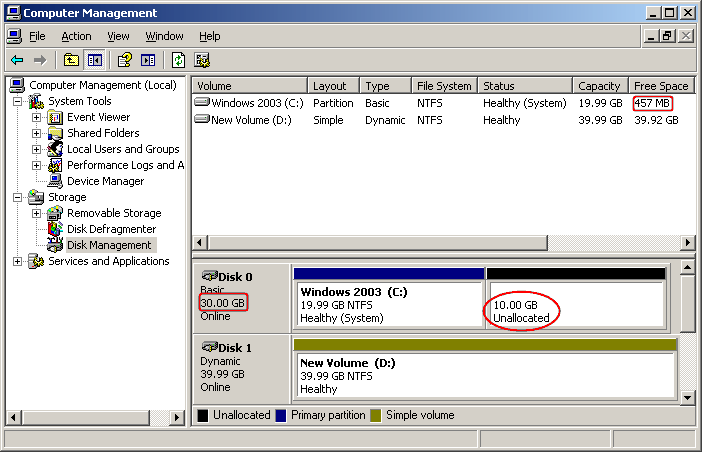
As the "WARNING" message mentioned above, to expand the size of the partitions, you must use third-party utility. As ALL-IN-ONE partition manager, AOMEI Partition Assistant Server enables you to extend partition without losing data and extend NTFS system partition without reboot.
How to extend system partition (C drive) after increasing VMwarm disk size?
Tip: To follow the step by step instruction, you can download the Demo Version for a free trial.
Case 1. There is unallocated space very behind aim partition.
Step 1. Open AOMEI Partition Assistant. Right-click the object partition and choose “Resize/Move Partition”.
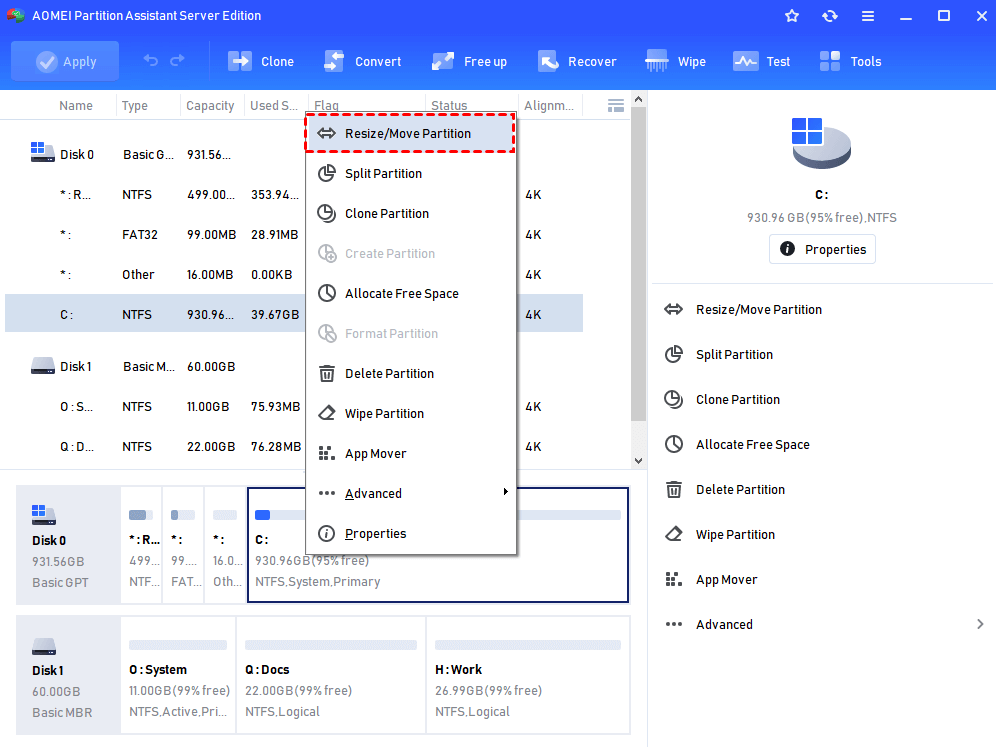
Step 2. Move the graphic bar rightwards to increase vmware disk size.
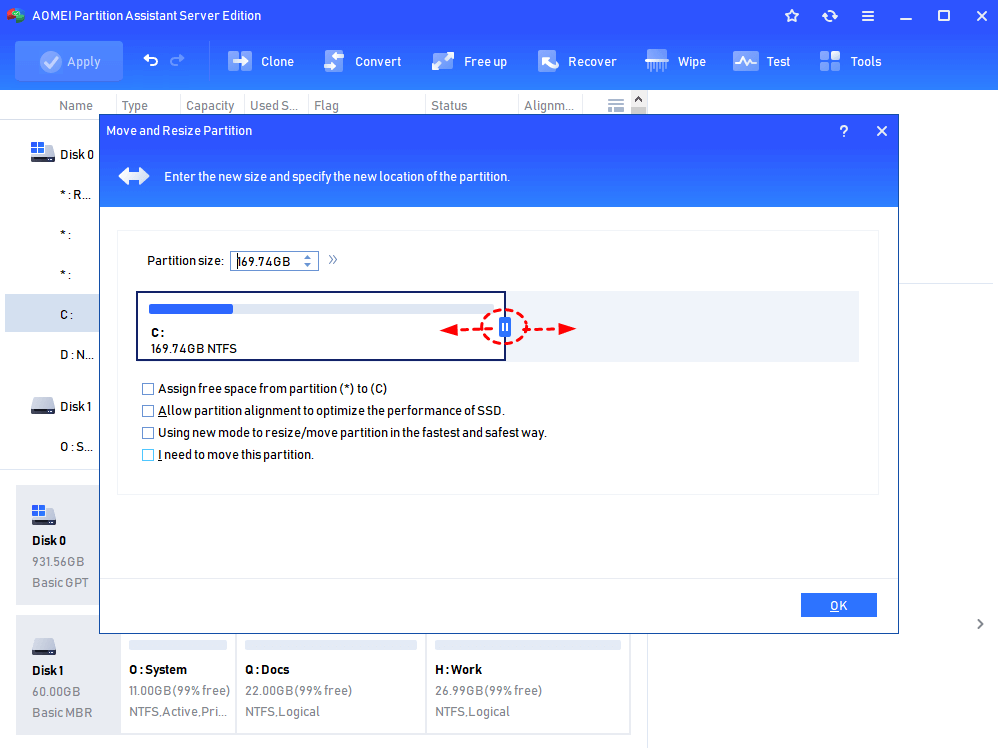
Step 3. Preview the extended partition and click “Apply” to carry out the operation.
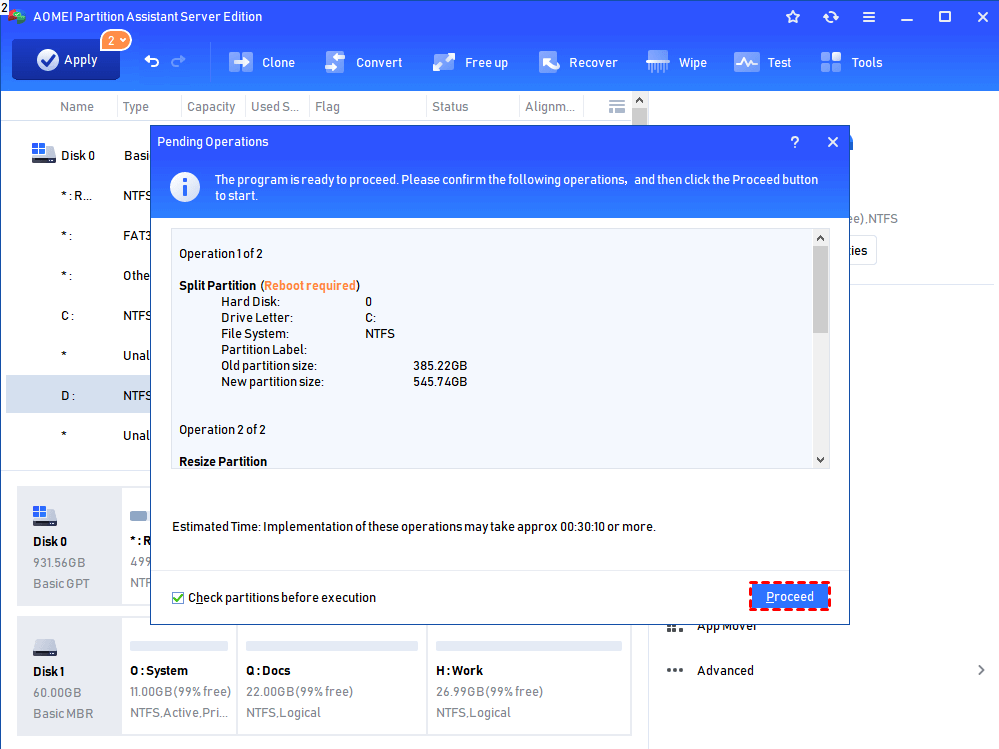
Case 2. There is an unallocated space but not right behind object partition.
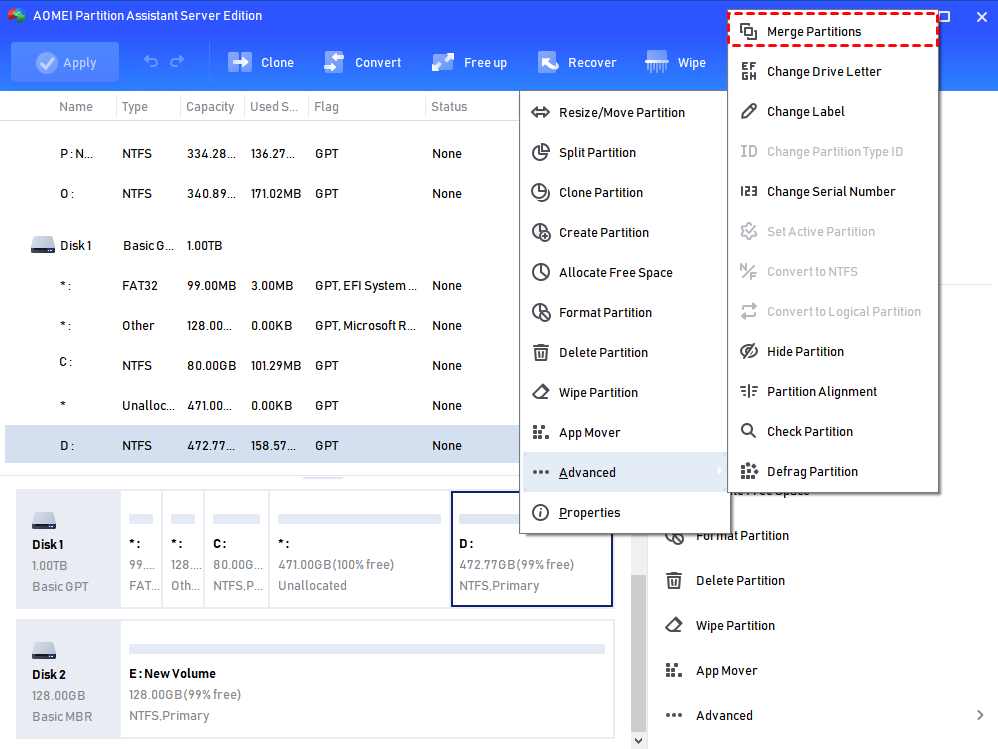
Step 1. Right-click on the partition on VMware hard drive you plan to increase to make it active and select "Advanced" > “Merge Partitions”.
Step 2. Choose the nonadjacent unallocated space to be merged into the aim partition to VMware increase disk size.
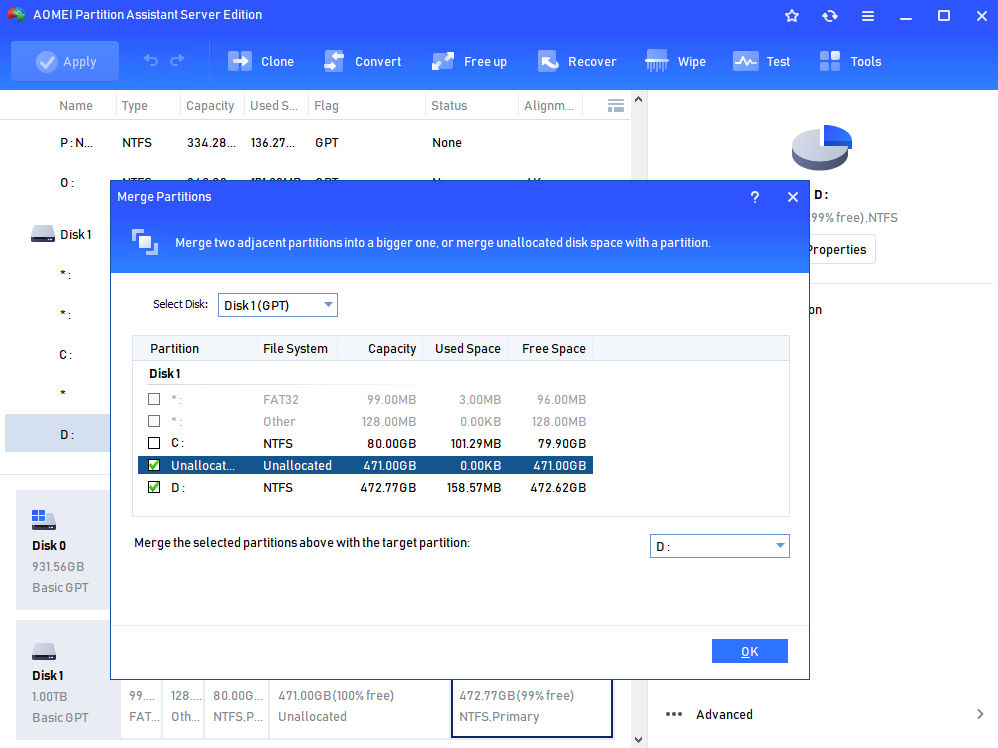
Step 3. You can see that the object partition has been increased. However, this is a preview, to make it true, just click “Apply”.
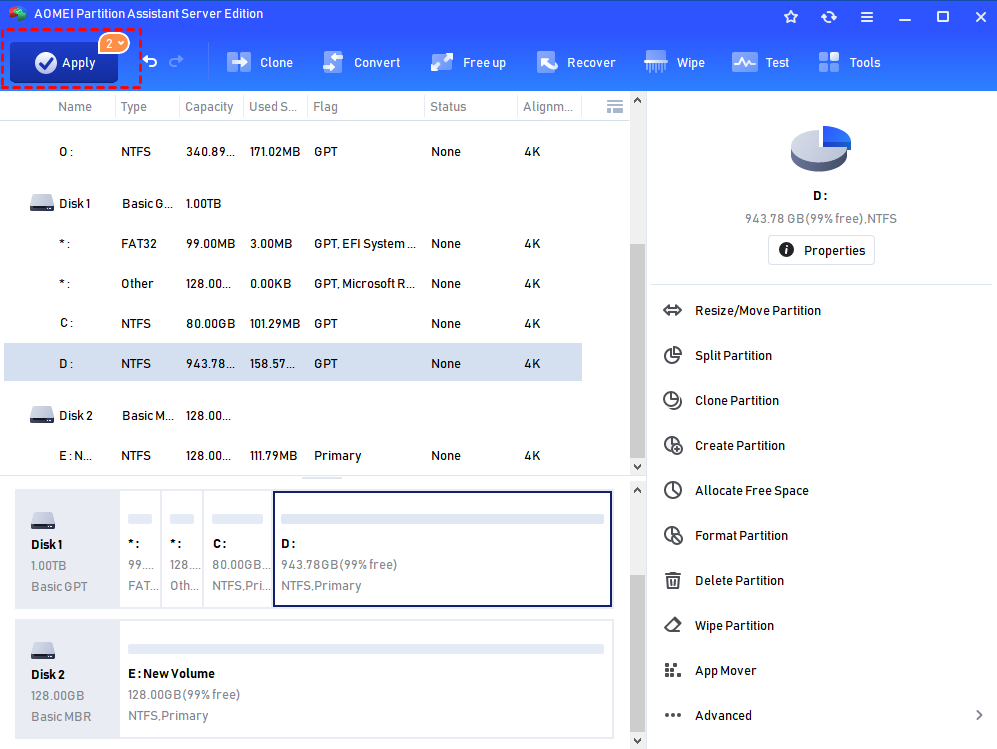
Case 3. There is no unallocated space on the hard drive.
If there is no unallocated space on the hard drive, you can directly allocate free space from one partition to another; see the following:
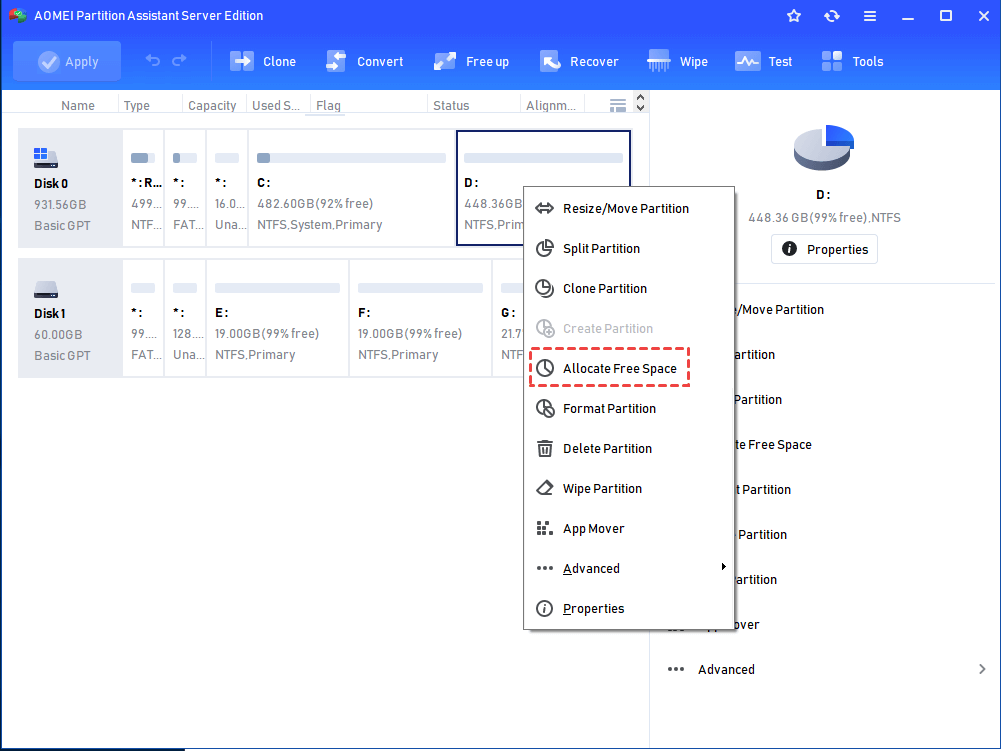
Step 1. Choose a partition (eg. D) from which to shrink free space. Right-click on it and choose “Allocate Free Space”.
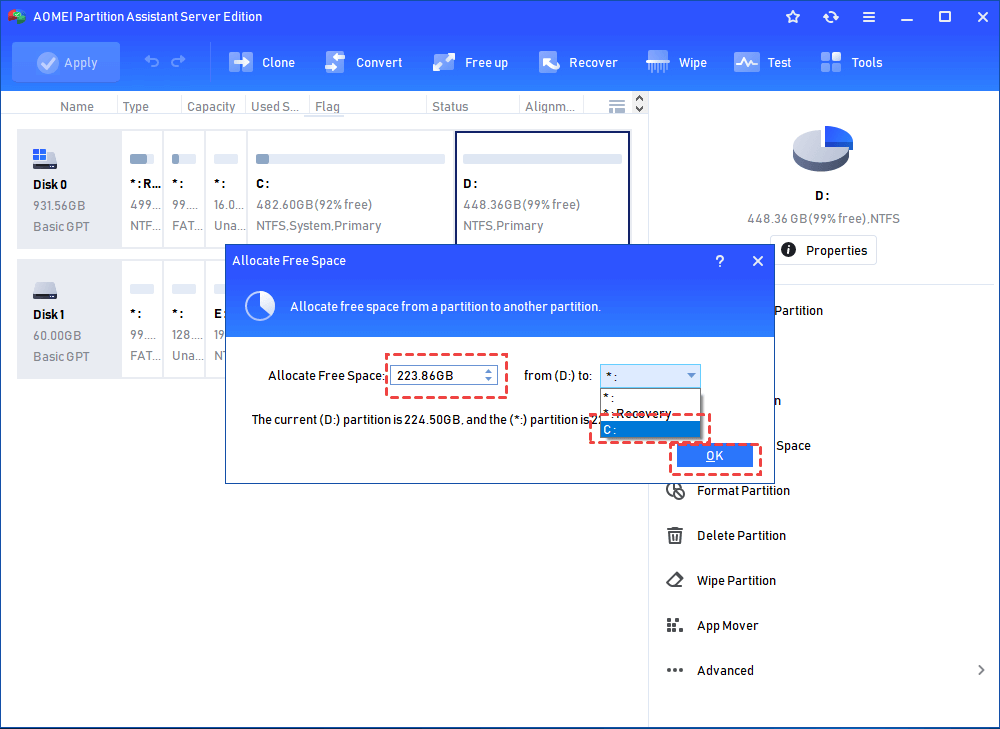
Step 2. Then you can input the specific free space in GB to allocate to the target partition and click "OK".
Step 3. Finally, don’t forget to “Apply” the operation.
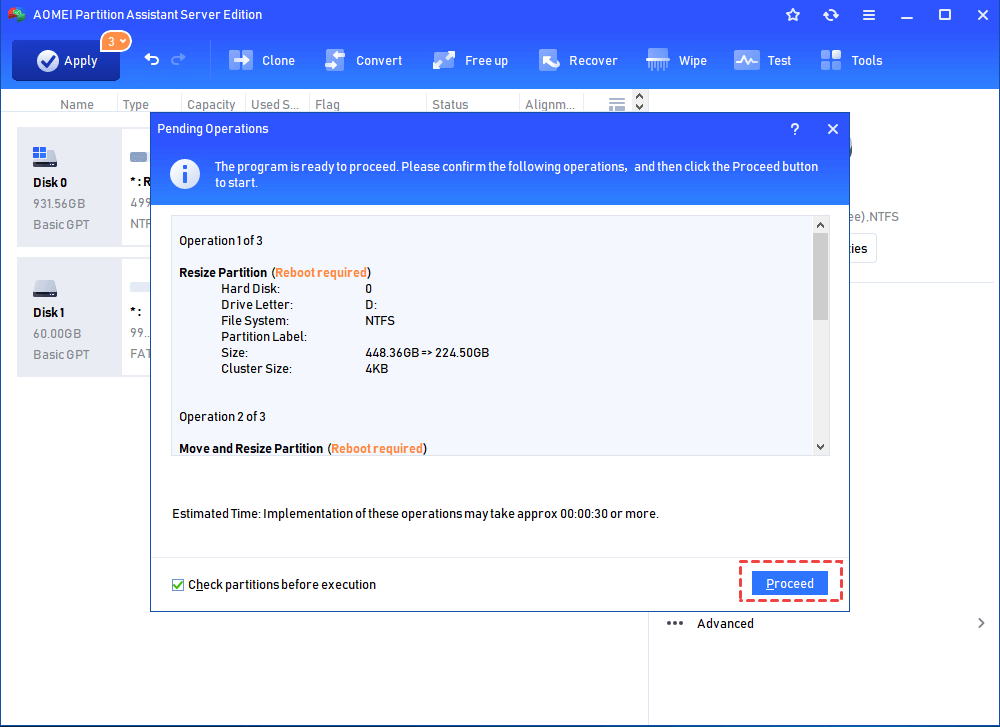
Then, wherever the unallocated space locates, very behind aim partition or not, you can continue with the above operations in Case1 or Case2 to do VMware increase disk size. And this tool also supports resizing BitLocker partition.