
 AOMEI Partition Assistant


How to Extend & Shrink Partition in Windows XP for Free?
Download free partition magic alternative & partition manager software to extend and shrink partition in Windows XP Home and Professional Edition, 32/64-bit easily and safely.

By Bryce / Updated on May 12, 2023


The operating system Microsoft Windows XP was released in 2001. Over the decade, Windows XP has finished a success close to perfect service work for its world wide users. Although upgrade version Windows system with powerful function and fast running run out, most people still keep using Windows XP as their dependent assistant for its available working.
As Windows XP user, you may know some features how to create, delete and format partition. Even so, troubles are often encountered during the process of resizing Windows XP partition. For example, you can see on a fairly regular basis as your hard drive fills up is the low disk space warning. Windows XP has basic function snap-in but limits in extending partition or shrinking partition.
Facing that, you can now and then ignore the Windows XP low disk space warning. Surprisingly, it indicates big problem on C: drive. Windows XP properly count on a minimum amount of available disk space on the system drive. To solve this problem, firstly, you can cleanup files checked as safely erase. Objectively this gives little help. Then, you can consider removing programs that you abandon and moving large videos, music and graphics of media files to other partition. So it must take much time.
Advanced solution - free AOMEI Partition Assistant Standard Edition
As Partition Magic alternative, AOMEI Partition Assistant Standard Edition is the latest and completely free hard disk partition manager software. The built-in "Resize Partition" feature lets you shrink and extend partition in Windows XP without data loss (BitLocker partition supported).
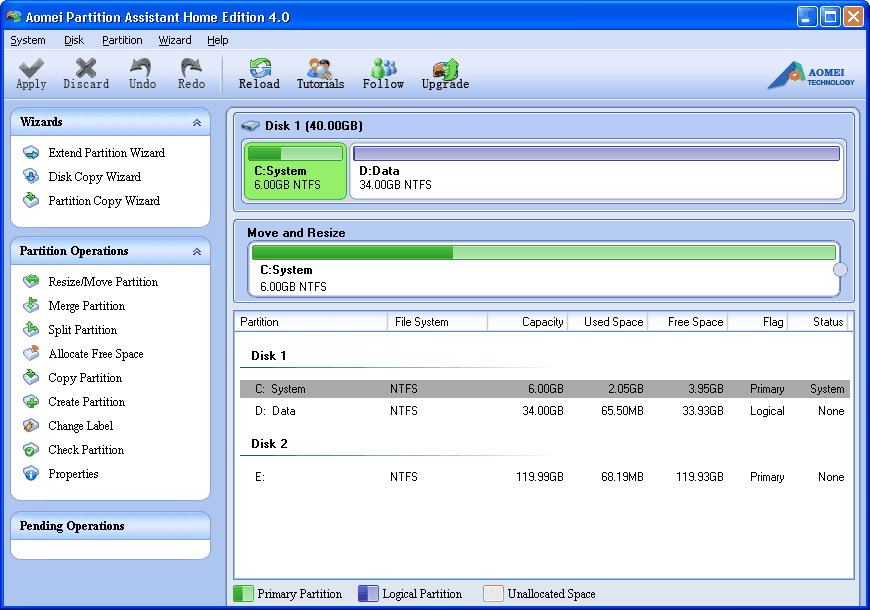
Install and launch AOMEI Partition Assistant Standard Edition. All the disk partitions in Windows XP will be displayed as below:
Shrink Windows XP Partition (More related articles)
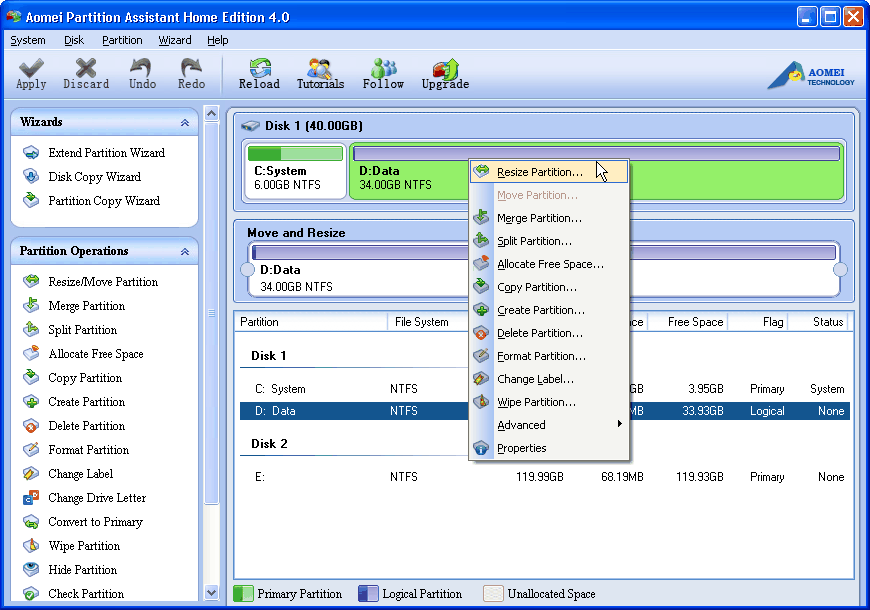
Right click on a partition (here’s D) you want to shrink and select "Resize/Move Partition"
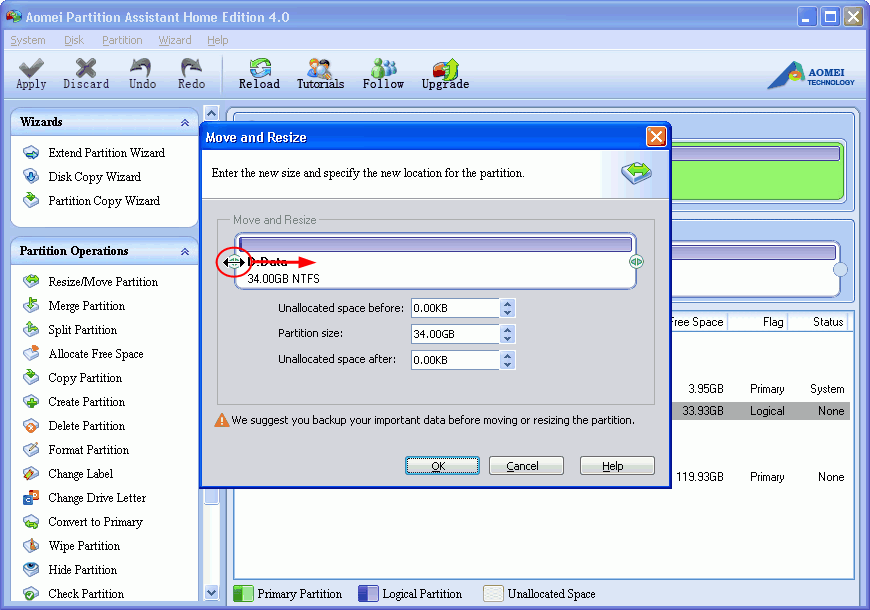
In the pop-up window, position the mouse pointer on the left handle and drag the slider bar rightwards to shrink Windows XP partition as shown below:

Extend Windows XP Partition (More related articles)
Click "OK". You can find there is contiguous unallocated space behind C drive. Then, select C drive and drag the right handle rightwards to extend the Windows XP partition as shown below:
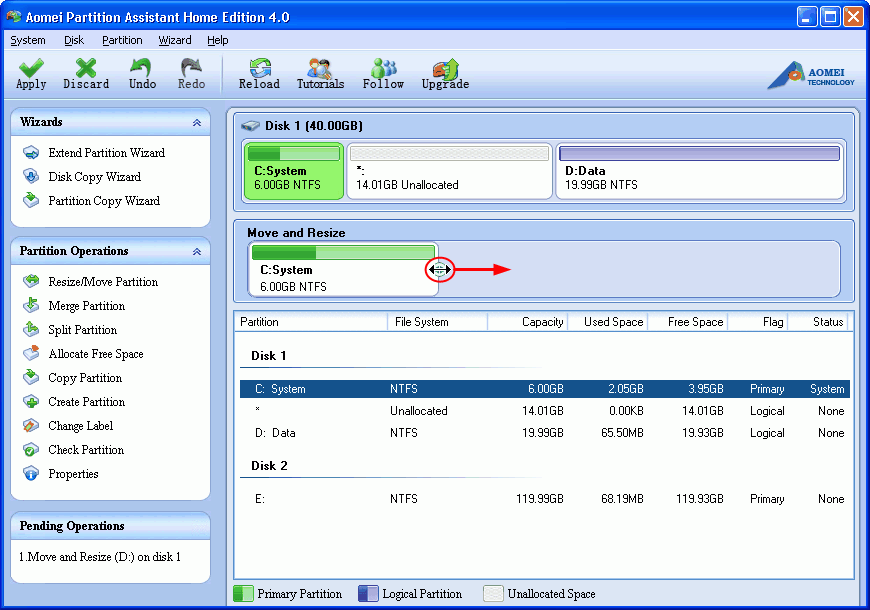
You can preview the extended partition (here’s C) and shrunk partition (here’s D). To save changes, do remember to click "Apply" on the toolbar.

With several clicks and drags, you can extend and shrink partition in Windows XP without losing data. Learn more features or free download to try it out.