 AOMEI Partition Assistant


How to Free Resize Partition for Windows 7, 8 or 10?
You can free resize partition in Windows 7 without losing data via AOMEI Partition Assistant Standard.

By Bryce / Updated on May 12, 2023


Part of Windows 7 users found that sometimes, Windows Disk Management cannot extend volume or shrink volume, and they need to figure out a way to free resize partition in Windows.
Well, the AOMEI Partition Assistant Standard Edition is a totally free disk partition software for managing and optimizing hard drive for your PC and laptop. It allows you to resize partition in Windows 7 free. Besides, it has many other free features such as create, delete, format partition, etc. AOMEI Partition Assistant Standard supports all Windows PC operating systems including Windows 10, Windows 8/8.1, Windows 7, Windows Vista, Windows XP, both 32bit and 64bit. Here are the detailed steps for how to free resize partition in Windows 7 by using AOMEI Partition Assistant Standard.
How to free resize partition in Windows 7
AOMEI Partition Assistant allows you to extend partition or shrink partition more flexibly, even BitLocker partition. Just free download this software, install and launch it. Then, follow the next content to extend or shrink volume.
Extend Partition
It can extend partition effortlessly. If the unallocated space is not adjacently behind the partition that you want to extend, it enables you to change position.
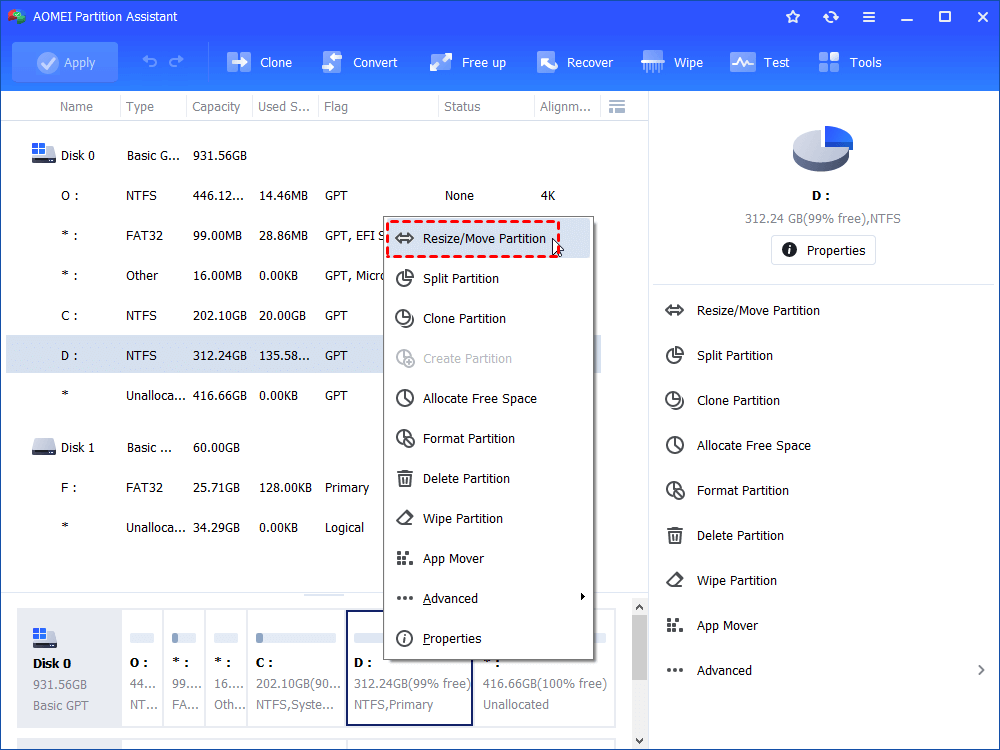
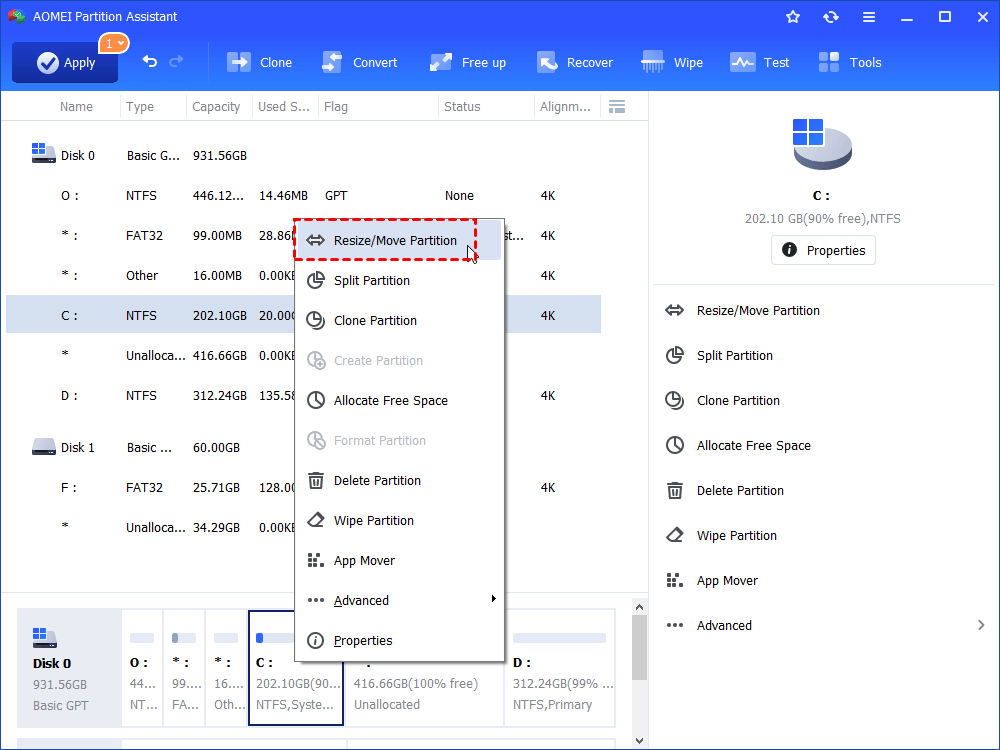
Step 1. Right-click the partition between the partition that you want to extend and the unallocated space and choose "Resize/Move Partition".
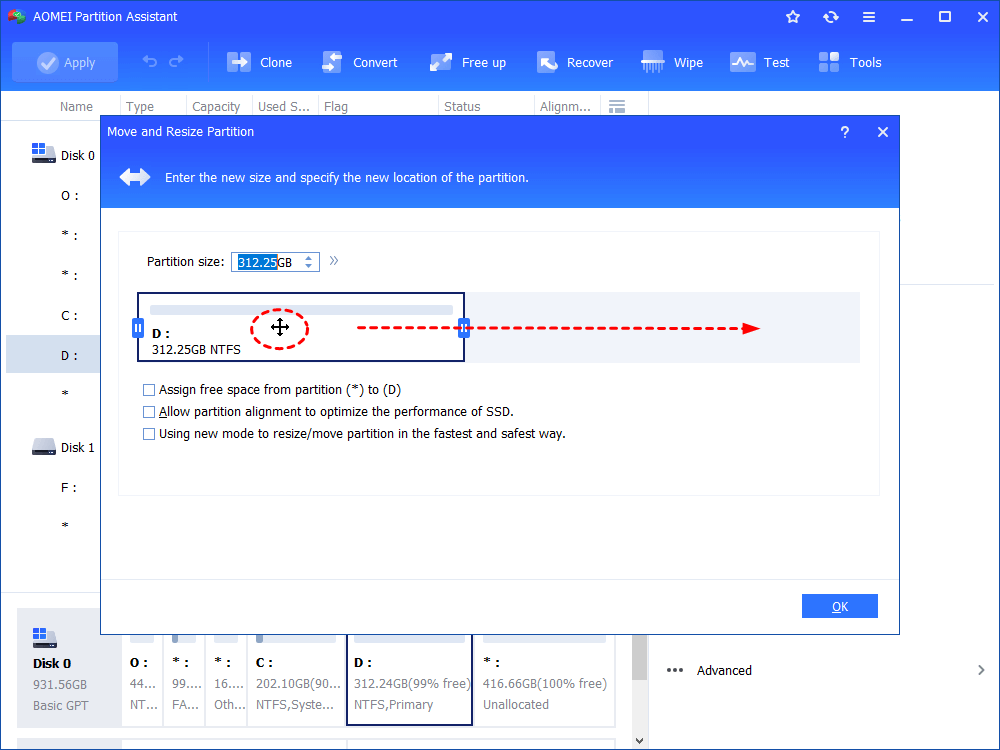
Step 2. Drag partition D rightward and click OK.
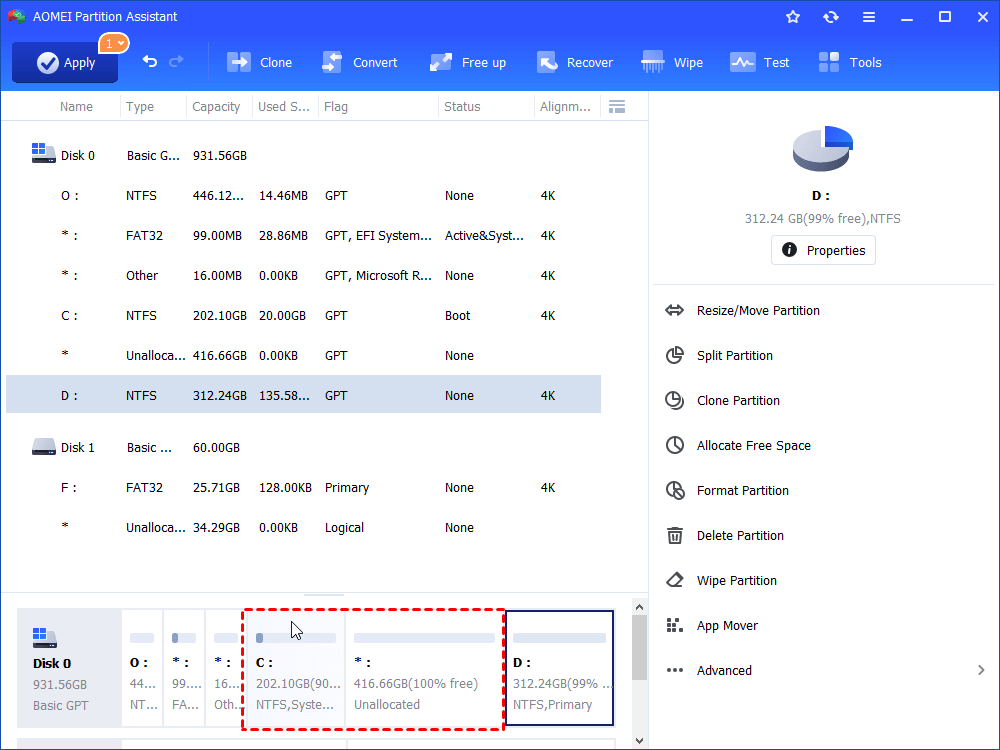
Step 3. Here you'll find that the unallocated space is behind C drive.
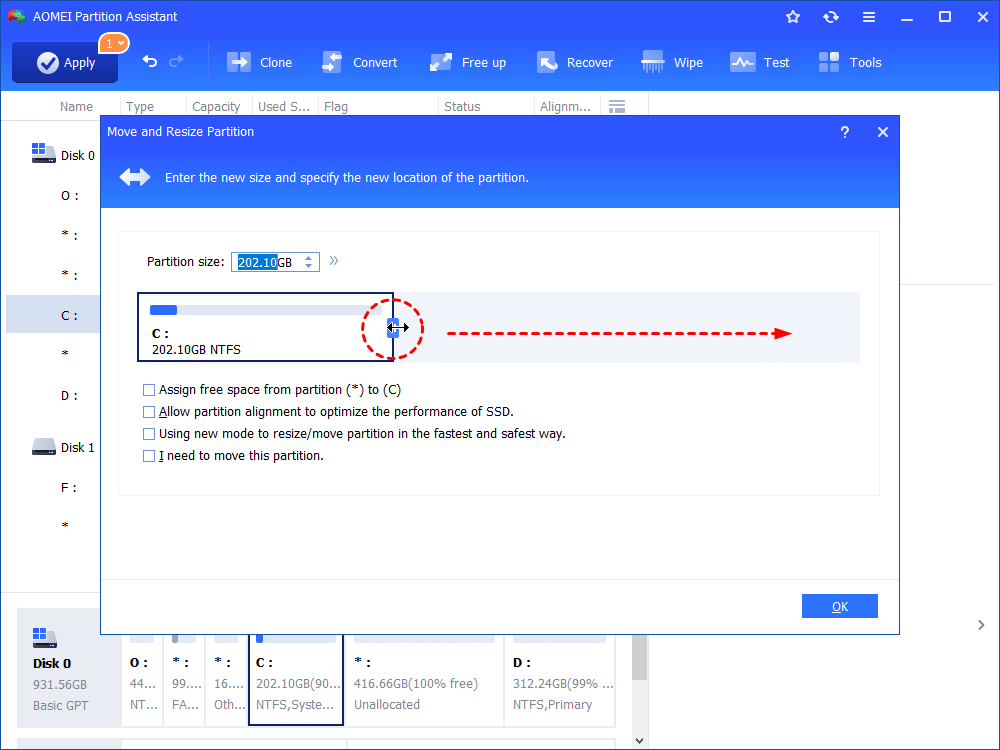
Step 4. Right-click C drive and choose "Resize/Move Partition" .
Step 5. Slide the double-sided arrow to the right. Then, click "OK".
Shrink partition
If you want to shrink partition on the disk, the AOMEI Partition Assistant can provides you a simpler and safer way to shrink volume.
Step 1. Right-click the partition you want to shrink, select "Resize/Move Partition".
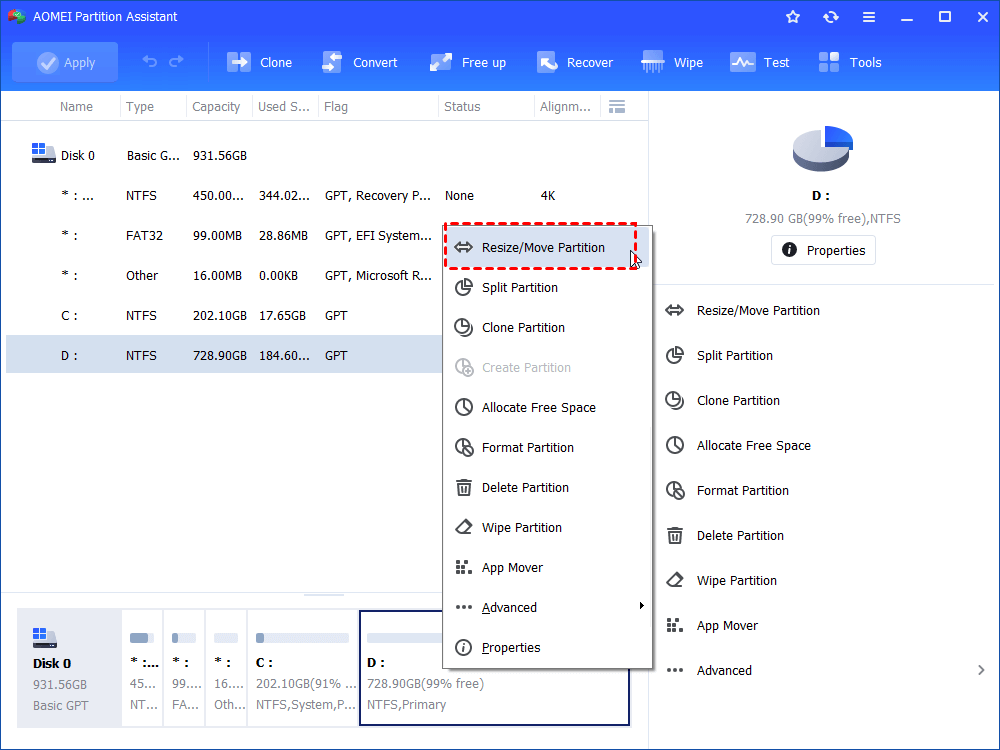
Step 2. Then, you drag the double-headed arrow toward inside flexible, or type the amount you want to shrink in the blank space. Click OK.
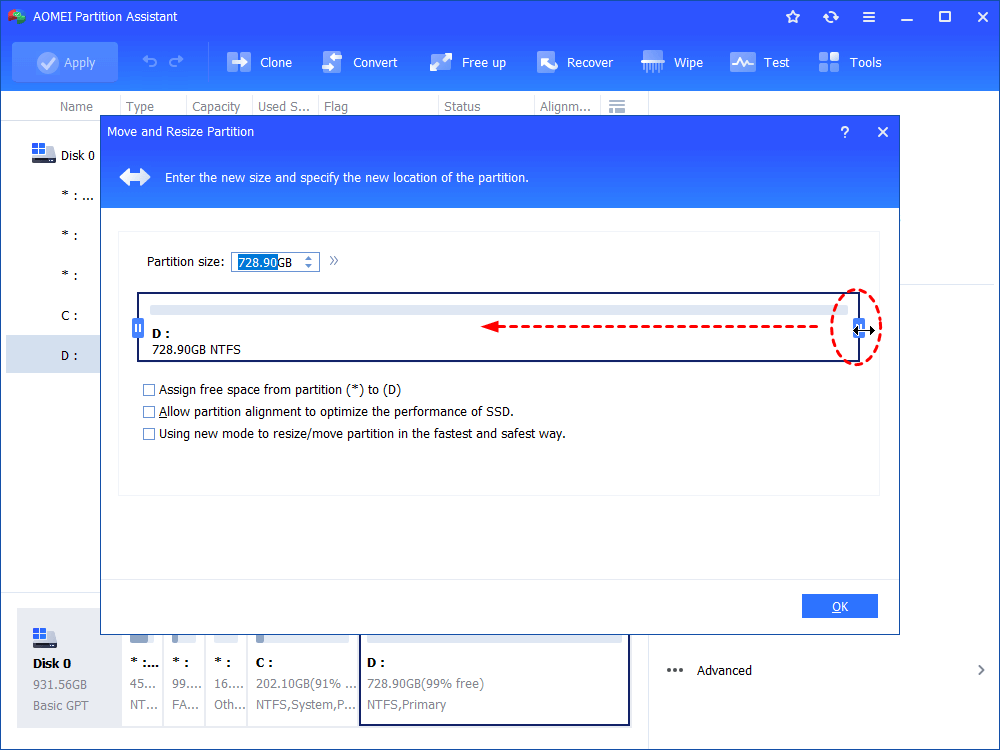
Step 3. Back to the main interface, you can see that the partition has been shrunk and there is unallocated space behind the partition. Click Apply to execute the task.
Notes:
-
Shrink system partition may execute under PreOS Mode.
-
If there are some page file or AOMEI Partition Assistant installation file running, it will be executed under PreOS Mode.
-
If there are still some programs running on the partition, AOMEI Partition Assistant will suggest you close the running program, or the process will be executed under PreOS Mode.
AOMEI Partition Assistant is such an outstanding software that you can use to free resize partition in Windows 7/8/10. It is a great tool that can free manage partition for Windows 7, Windows 8, and Windows 10. Besides changing partition size, you can also use it to create partition from unallocated space.