 AOMEI Partition Assistant


How to Convert NTFS to FAT32 without Losing Data?
Here you can learn how to convert NTFS to FAT32 without losing data? With AOMEI NTFS to FAT32 Converter, you can change NTFS to FAT32 without formatting.

By Michael / Updated on May 12, 2023


Why you need to convert NTFS to FAT32?
I have Sony PS3, it can not support NTFS partition when i need to play games. Are there some methods to change NTFS to FAT 32 without losing data or re-formatting the partition?
FAT32 is an older file system compared to NTFS, but it is writable/readable on a great number of operating systems. FAT32 can well work on DOS v7 and higher Windows 98, ME, 2000, etc. If you need to access some files from DOS mode or Windows 9X, you have to use FAT or FAT32 file system. Besides, it is more compatible with some popular game consoles like PS3, PS4, 3DS, and so on. So many computer users may desire to change the file system from NTFS to FAT32.
But all Windows built-in disk management tools (Disk Management, DiskPart, Window File Explore) only allows you to change NTFS to FAT32 by reformatting this partition. Of course, that will cause data loss. Therefore, you might be looking for a way to convert NTFS to FAT32 without formatting or losing data on this drive.
Safe software to convert NTFS to FAT32 without data loss
AOMEI Partition Assistant Professional provides a conversion tool: NTFS to FAT32 Converter, which is designed to convert NTFS to FAT32, or FAT32 to NTFS directly instead of reformatting and losing data on the partition. In addition, it can work on Windows 10/8/7/Vista/XP/2000 (Both 32bit and 64bit). Below are the steps of changing NTFS to FAT32 partition without losing data:
PS.: You can download the free demo version for a trial first of all.
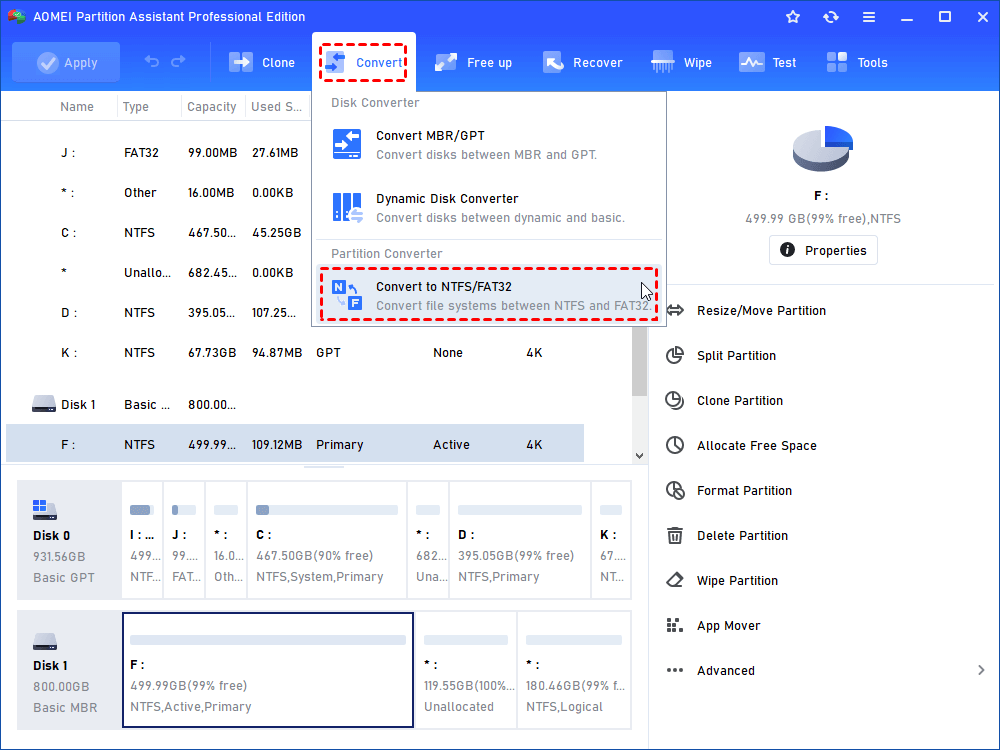
Step 1. Install and launch AOMEI Partition Assistant. Select Convert at the top side and then Convert to NTFS/FAT32.
Step 2. It will open AOMEI NTFS to FAT32 Converter. Here Select NTFS to FAT32, and click Next.
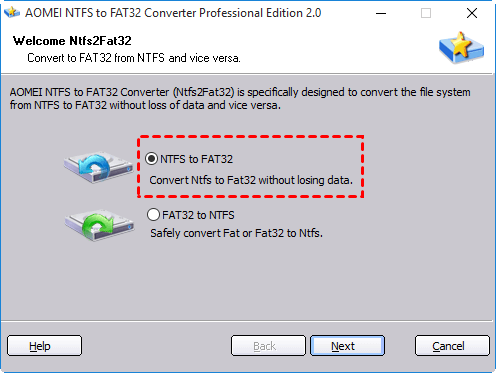
* The FAT32 to NTFS option is for users to convert from FAT32 to NTFS without losing data.
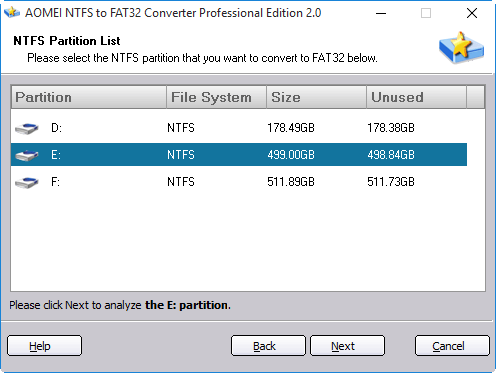
Step 3. Choose the NTFS partition you want to convert to FAT32 and click Next, it will execute the progress.
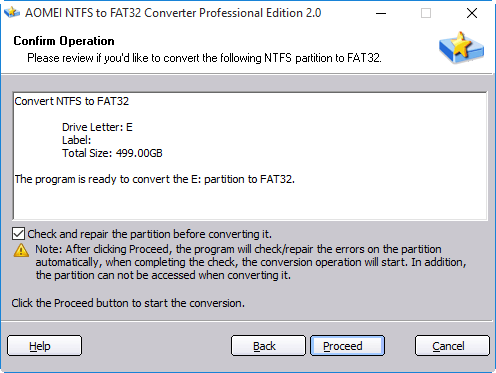
Step 4. Then click "Proceed" to execute the conversion.
Further study: convert NTFS to FAT32 via Windows format tool
Above is using a professional NTFS to FAT32 converter to change those two different file systems without losing data. If you want to use the Windows formatting tools to finish the conversion without data loss. You should first back up files before reformatting, and then follow the below instruction.
1. Open Windows Explorer and choose your drive that you want to reformat from NTFS to FAT32.
2. Right click the drive and select the "Format" option from the context menu.
3. Select "FAT32" from the drop-down box under the "File System" section and tick at the "Quick Format" option.
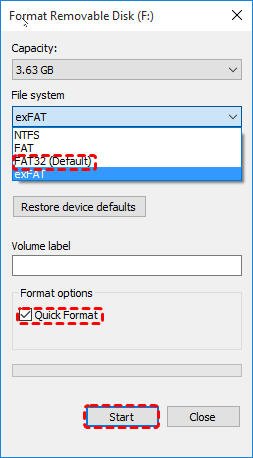
4. Click the "Start" button to start the re-formatting process. It may take a few minutes according to the size of your drive.
After the formatting process is done, you can restore the backup to the FAT32 partition.
Note:
FAT32 option will be unavailable in the drop-down box if the drive size you desire to format is larger than 32GB (This is a Windows limitation), but you could use AOMEI Partition Assistant to format NTFS to FAT32 up to 2TB partition.
Summary
So, with AOMEI Partition Assistant software, you can safely convert NTFS to FAT32 without losing data. Additionally, it comes with many other great functions to help you manage disk partitions on Windows PC such as converting MBR and GPT without deleting partitions, transferring OS to SSD drive, aligning SSD partitions, cloning hard disk, etc. If you are Windows Server 2003, 2008, 2012, 2016 users, you can use AOMEI Partition Assistant Server to make it.