
 AOMEI Partition Assistant


How to Add Unallocated Space to System Partition in Windows 7?
This article introduces the best method to add unallocated space to system partition for Windows 7 with the best partition magic Windows 7 software.

By Bryce / Updated on May 12, 2023


Real case about adding unallocated space to system partition
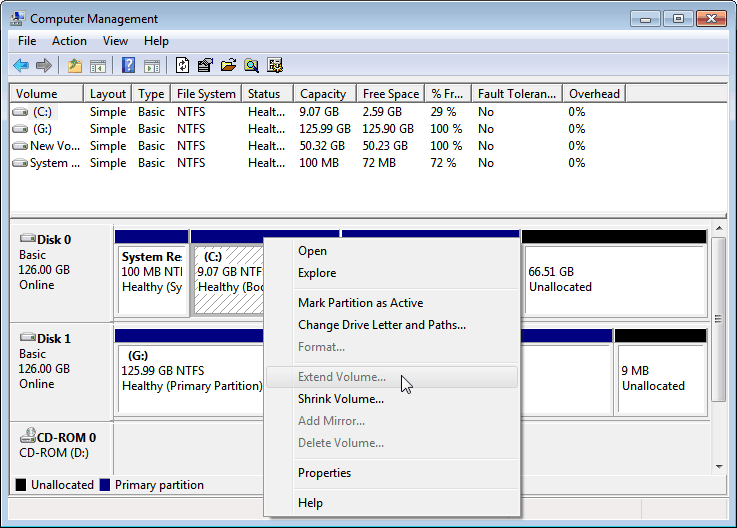
"One of my friend, he is running Windows 7, there is some unallocated space shown in Windows Disk Management. D: partition is located between C: partition (System partition) and unallocated space. As a result, "Extend volume" option is grayed out, his C: partition is running out of space and need to enlarge. So, is there any way to add unallocated space to partition without reinstalling operating system...?"
Problem analysis and solution introduction
The main reason is Windows Disk Management requires adjacent unallocated space, if there is no adjacent unallocated space, the task can not be continued. Based on this limitation, what’s worse, Windows Disk Management could not move partition at all.
So, to solve this problem, choose some highly praised partition magic Windows 7 tools is the best choice. To some Windows 7, 8, XP, Vista and 2000 home users, AOMEI Partition Assistant Standard Edition could also assist them to add unallocated space to system partition easily. If need more advanced features, AOMEI Partition Assistant Professional (PA Pro) tool will do a big favorthrough the following 4 steps.
Guide to add unallocated space to system partition in Windows 7
-
Before you follow the steps, please Download AOMEI Partition Assistant Professional (PA Pro) in advance for better understanding.
-
The following tutorial is based on above problem environment, if there is no unallocated space; please get detailed instruction about shrink partition Windows 7.
-
BitLocker partition are also supported.
1. Launch AOMEI Partition Assistant to get following disk information:

2. Right click on D partition and select "Resize/Move Partition". In the pop-up window, drag D partition rightwards.

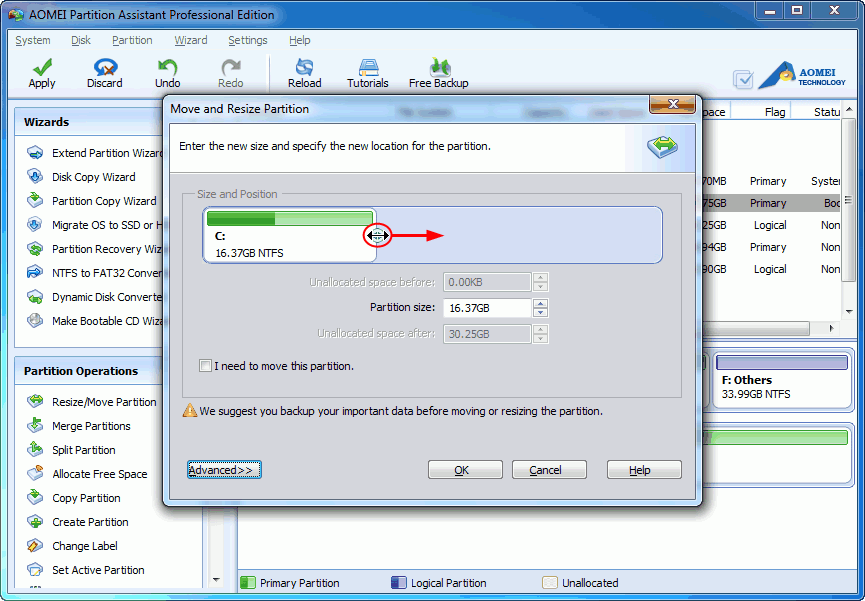
3. Click "OK". You can find the unallocated space was moved behind to C: partition. Right click on system partition and select "Resize Partition", in the pop-up window, drag right handle of C: partition rightwards to add unallocated space into partition:
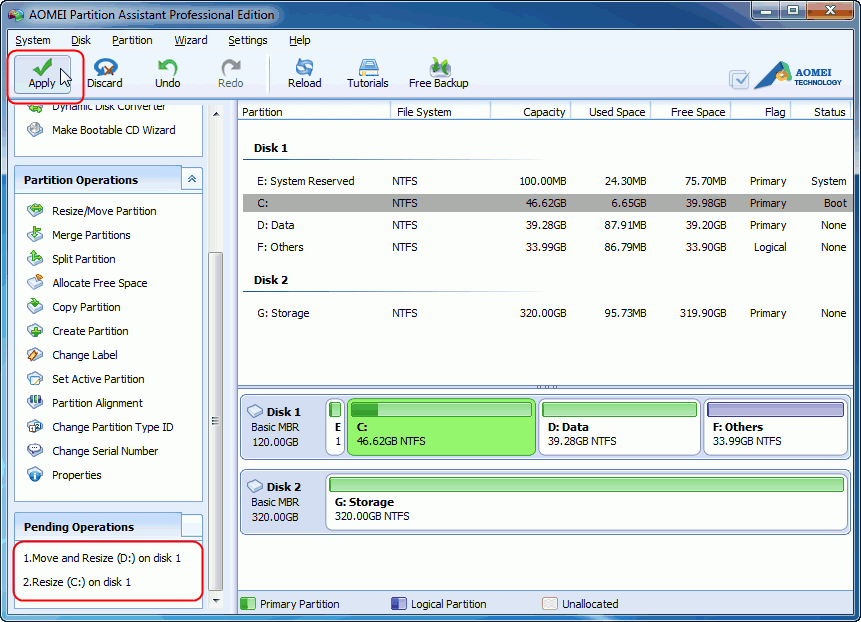
4.Click "OK" to preview the changes. To save changes, click "Apply" on the toolbar. Other buttons, "Undo", "Redo" or "Discard" are used for correction. Several minutes later, you will find that adding unallocated space to system partition is done:
So, with this all-in-one and easy-to-use program, we get the best and easy method to add unallocated space to system partition for Windows 7. Experience its other features by reading the following related articles: