
Hide and Unhide Partition- Partition Assistant Help
You can hide or unhide partitions easily with Partition Assistant. After hiding the partition, the drive letter will be removed.

Overview of Hide and Unhide Partition
How to Hide Partition
Before you do
- Download and install AOMEI Partition Assistant on a Windows computer.
- If there are other applications running on the partition which you are going to hide/unhide, AOMEI Partition Assistant will notify you to close those applications.
- Move the most frequently used files and applications that you don’t want to hide from the partition which you are going to hide to other partitions.
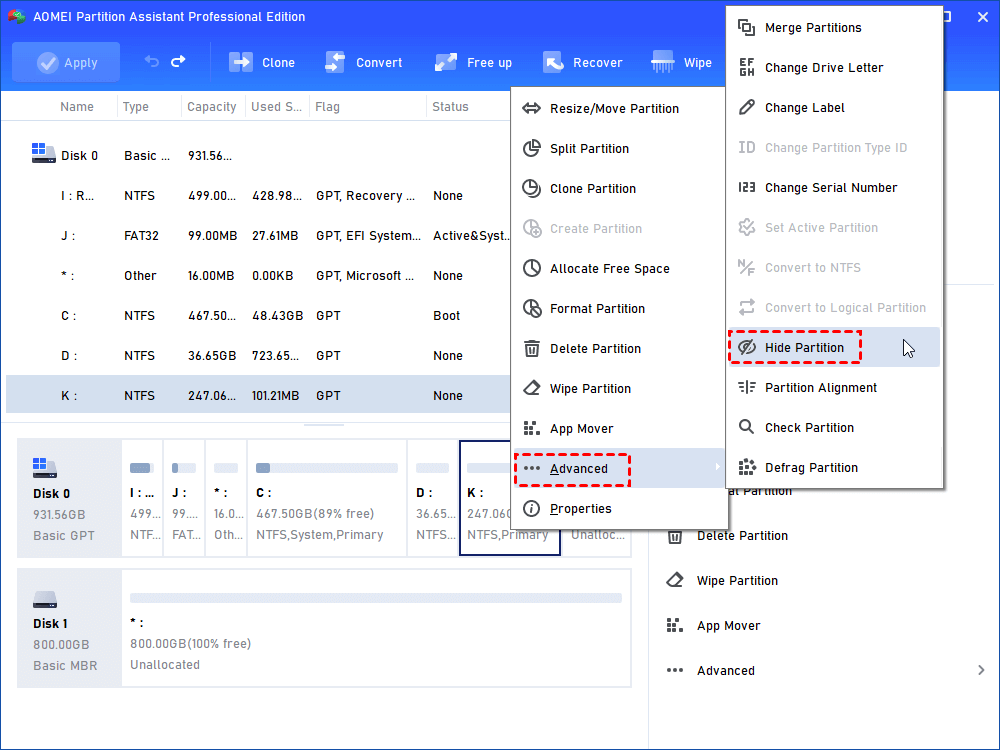
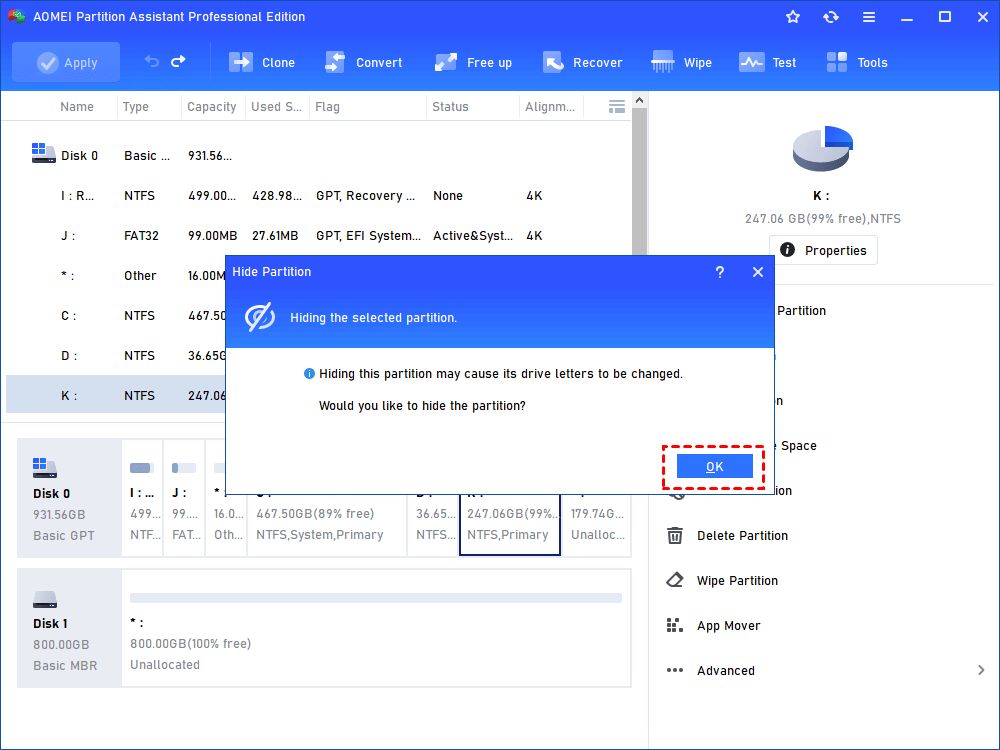
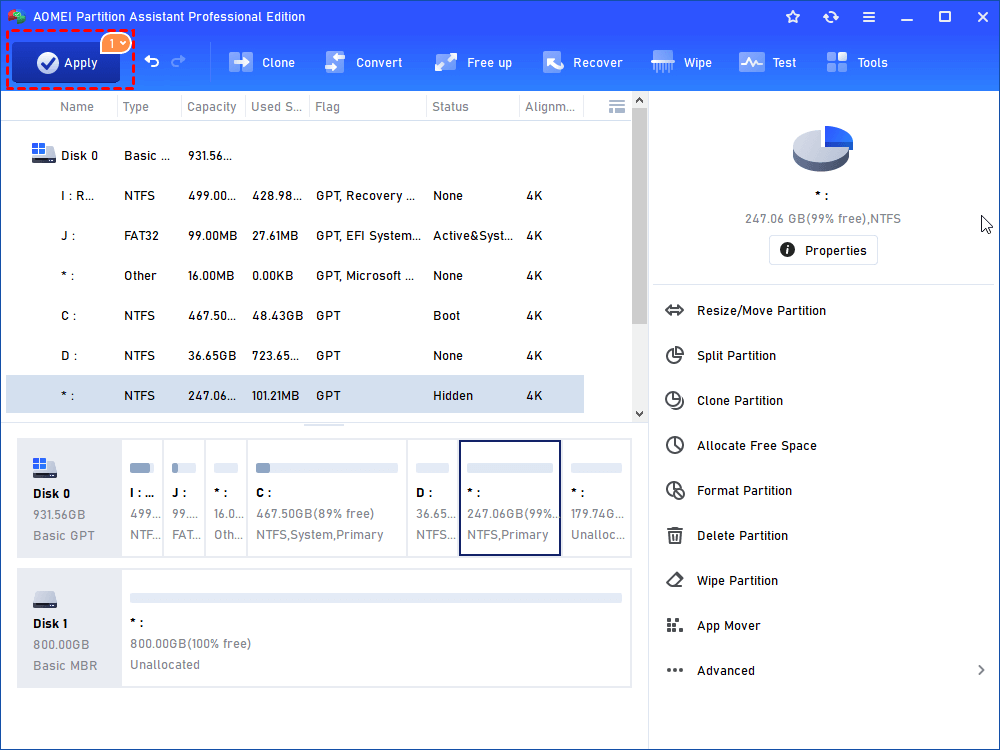
How to Hide Partitions with Partition Assistant
Conclusion
Following the steps above, you will get the partition hidden. In this case, the partition will not be displayed in My Computer and Windows File Explorer. And, the data on the hidden partition will also be completely invisible to any visitors.
This feature is mainly used to hide a partition where there is important and sensitive data on it. It helps you protect your data security and privacy. After you unhide the partition, you will view the data on it and use the partition normally.
- This hidden partition operation will hide/unhide your partition with its content intact.
- The hidden partition will not be available to use until you unhide it.
- After you unhide a partition, Windows will randomly reallocate a new drive letter to that partition. This means you may get a drive letter that is different from its original one.
- Unhide a partition will cause its related shortcuts invalid.
FAQs:
Q: Can I still use the partition and access data on it after it is hidden?
A: No, the partition will not be displayed in your Windows File Explorer so it is unable to directly check and access the partition and data on it.
Q: Will the operation "Hide Partition" cause any data loss?
A: Normally, it will not cause data loss after you hide a partition. It hides the partition drive letter so that it is unable to directly access data on the partition. After you unhide the partition, you can access data and use the partition without a problem.
Q: Why the drive letter is changed after I unhide the partition, for example, it was E: but changed to F: after it is unhidden.
A: It is normal because Windows will randomly reallocate new drive letters for partitions. If the original E: has been allocated to another partition, a new drive letter will be assigned to the unhidden partition.